Esta página todavía no está traducida, así que la ves en inglés.
turno-browserActions
Live view and take-over
Watch what the agent does in an identity's browser, pause it and take the controls.
On by default for every server with an identity. Watch what the agent does in an identity's browser, and take the controls when it needs you (a captcha, a confirmation, a page it does not understand). The view listens on 127.0.0.1 behind a cookie of its own, and nothing opens until you ask for it:
# status, and opens the view as an app window next to the agent's Chrome
turno-browser live school
# the agent's next call waits for you
turno-browser pause school
# it goes on, and is told what changed
turno-browser resume school
turno-browser set school --live false turns it off from the next server start, and --live-wait 5m
changes how long a paused call waits (identity.json "live": { "enabled": false, "wait": "2m" };
from "5s" to "30m", 2 minutes by default). "enabled": "auto" says the same as leaving it out.
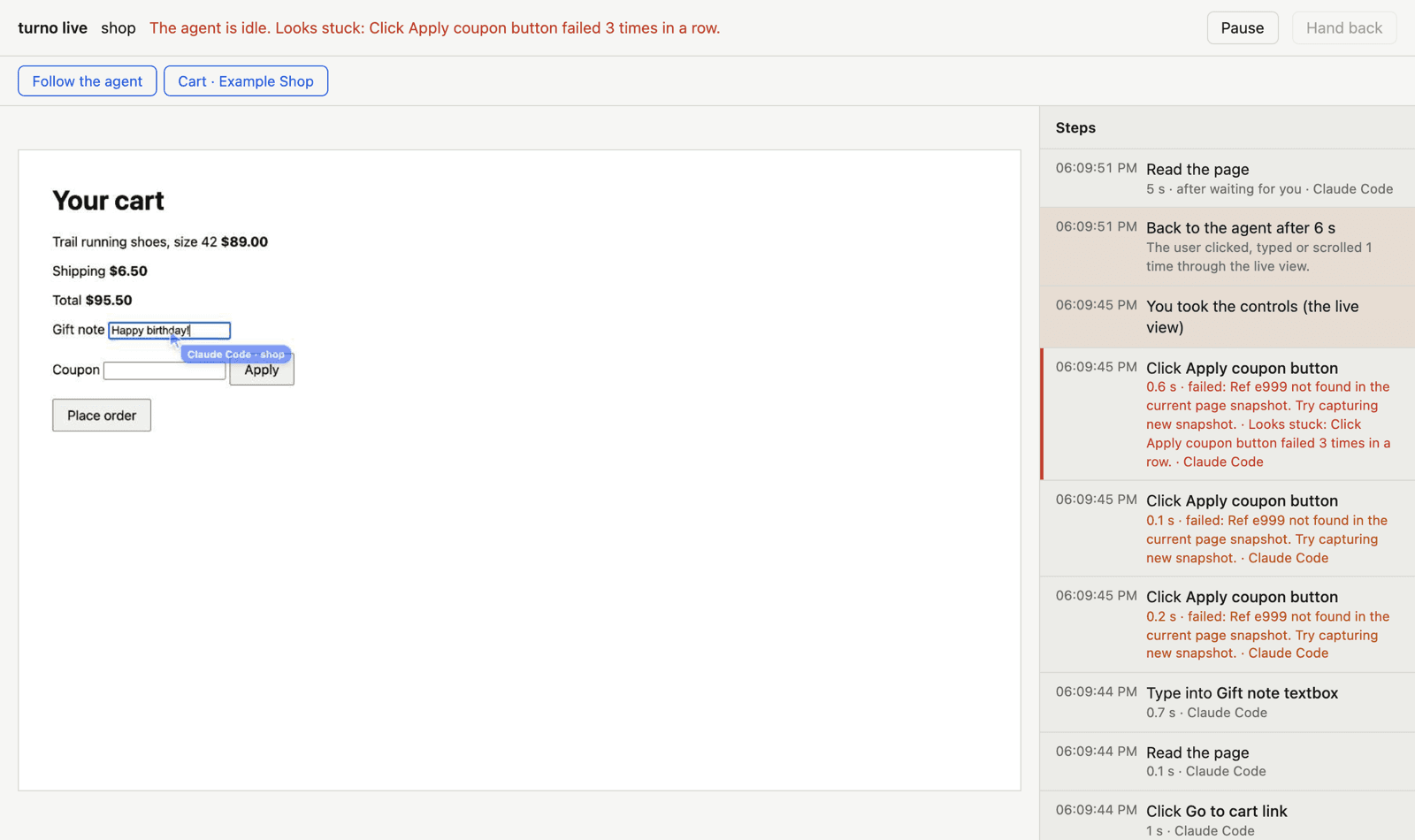
The view is a panel: the agent's tab as a picture (a screencast over CDP, sent only while a view
is open) next to a timeline of the agent's steps, a list of tabs with "Follow the agent" (the tab of
the latest call) as the default, and Pause and Hand back buttons. Your clicks, keys and scrolls on
the picture go to that tab. In a headed Chrome you can also use the window itself: turno-browser pause brings the agent's tab to the front.
turno-browser live opens it as an app window (Chrome's --app: no tabs, no address bar) of the
Chromium browser you already use: your default browser when it is Chrome, Brave, Edge, Chromium or
Vivaldi, else Google Chrome (Microsoft Edge on Windows). The window goes to the browser that runs,
so it costs a renderer rather than a second browser: on macOS with Chrome 158 it opened in about
0.4 s and added about 17 MB, where a separate Chrome on a profile of its own took twice as long and
a whole browser's memory. Without a Chromium browser, or with --tab, the view opens in a tab of
your default browser.
The timeline
Each call of the agent is a line: the time, what it did in a few words ("Click", "Type into", "Open"), the element or address it worked on, how long it took, and whether it failed (with the first line of the error) or was not run after you changed the page. Pauses, your turns and each hand-back are lines too, with what changed while you had the browser. It keeps the last 200 steps.
What a line never shows: the text the agent typed, the values it filled or selected, the code of a
script, or the query of an address (only its origin and path). Everything else goes through the
same redaction as the agent's results, so a vault value or a password shows as [vault: <name>].
When the same call on the same element fails three times in a row, the session looks stuck: the line and the status say so, in red, until a call of that session works.
For screen readers, new steps and changes of state (paused, your turn, back to the agent, stuck)
are announced politely (aria-live); the agent cursor in the page stays out of the accessibility
tree.
Taking the controls without pausing
You do not have to press Pause first. When you click, type or scroll on the picture while the agent works, or in the agent's Chrome window itself, the agent's next call waits for you:
- In the view, your input pauses the agent at once and waits for the call that runs to end, so it never lands in the middle of the agent's own.
- In the Chrome window, the agent's next call sees your clicks, keys and scrolls since its last call ended, and waits. Moving the mouse alone does not count.
- The browser goes back to the agent 5 seconds after your last input, or at once when you press Hand back. The waiting call is told that you used the browser and what changed, as after a pause; your input counts as a change, so a call that does more than read gets a fresh snapshot instead. Press Pause during such a hold to keep the controls until you hand back.
- Input while a call of the agent runs is not seen in the Chrome window (the browser cannot tell your clicks from the agent's then), and neither is input inside a frame of another site that does not move the focus. The listeners live in Playwright's isolated world, so the page's own scripts cannot see them, and they add nothing to the page.
While you can see the browser, the agent cursor shows where the agent is on the page. During a pause its frame turns dashed and its badge says so:
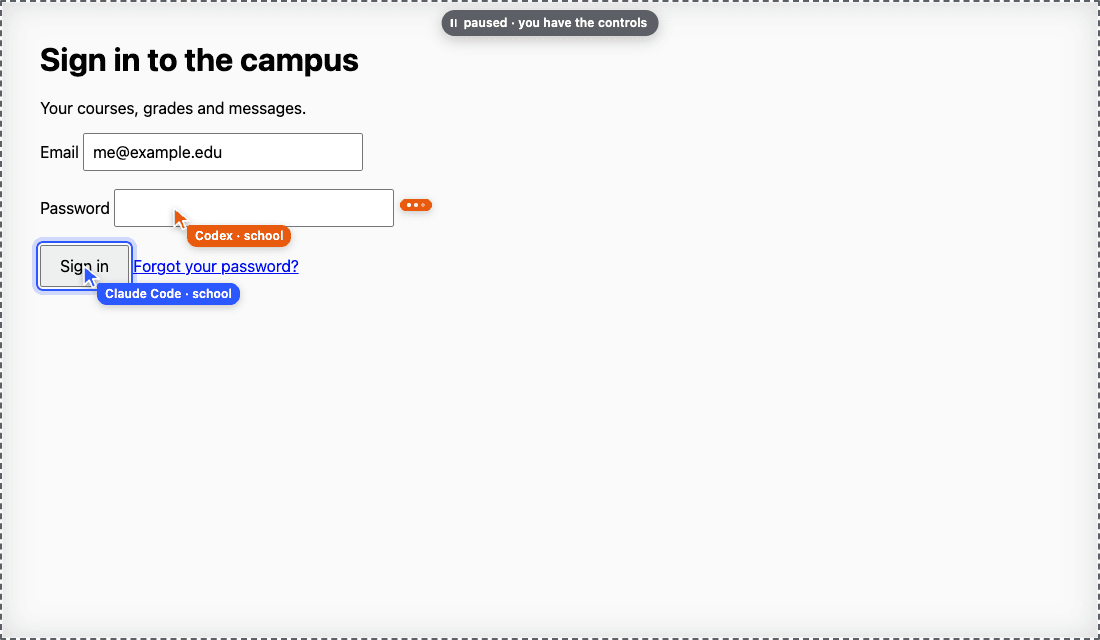
What a pause does:
- A call that is running finishes. The next call of the agent (every session of the identity)
waits, up to the live wait; then it fails with a message that says you still have the browser,
and the next call waits again. A
browser_batch,browser_replayorbrowser_actin progress stops at its next step. The natural language and captcha tools (browser_act,browser_extract,browser_observe,browser_solve_captcha) wait like any other call; tools that do not touch the browser (browser_flows) are not held. - While you have the browser, the idle limit does not close it, the tab governor parks and closes
nothing (a popup you open stays), and a trace (if
record.tracesis on) is saved, so what you do is not in it. - On resume (Hand back in the view, or
turno-browser resume) each waiting call starts with a note: how long the pause lasted and what changed (the current tab's URL and title, tabs opened and closed, your input in the view). When nothing changed the call runs. When something changed, a call that only reads (a snapshot, the tab list,browser_extract,browser_observe) runs; any other call does not, because the refs of the agent's last snapshot may point elsewhere, and the agent gets an error that says so, with a fresh snapshot.
How it is protected:
- The view is served on 127.0.0.1 only, on a random port. It answers only a browser that holds the
server's cookie: a random token made at start, never written to disk or logged.
turno-browser livegets a link from the server whose code works once, within two minutes, opens it, and never prints it. Requests must name the server by its loopback address (no DNS rebinding), and the buttons only work from the view's own page. turno-browser live,pauseandresumetalk to the server through a Unix socket in a private folder (mode 700).~/.local/state/turno/browser/identities/<id>/live.jsonsays where it is, and holds no secret.- A page that holds a vault value or a password is never shown: before
browser_loginfills a form (at once, or key by key withhumanize), a value goes into a password field, or a replay types a sensitive parameter, the view stops sending that page and says it is hidden, until the page navigates. Your input is not sent to a hidden page either. With the live view on, the script tools are refused on such a page, as they are while recording. - Your input in the view is not logged, traced or recorded in a flow; a flow being recorded does not have what you did, and the resume note says so.
When the agent asks for you
Some steps only you may do: typing a password, solving a captcha, entering a code from an email
or a text message, a second factor, accepting terms or giving consent. For those the agent calls
browser_request_human instead of acting itself. It works with the live view on or off:
{
  "instruction": "Type your password and press Sign in.",
  "target": "e12",
  "until": { "urlChanges": true, "timeoutMs": 300000 },
  "requireHumanClick": false
}- The agent's tab comes to the front (and its window back from the dock), with a banner at the
bottom of the page that shows the instruction and a Done button, and a ring around
target(a ref from the agent's last snapshot, or a selector, asbrowser_clicktakes). The banner is drawn again on every page you open during the step, and goes away when it ends. The live view shows it too. - Every call of every session waits while you act, as during a pause: calls already running finish first, so no input of the agent's reaches the page while the banner is up.
- The step ends on the first of: the URL matches
until.url(a glob like**/dashboard*, a regular expression written/.../, or text the URL contains) or changes (until.urlChanges),until.selectoris visible, you press Done (until.done: falsehides the button), you hand the browser back (Hand back in the view, orturno-browser resume), or the timeout: 5 minutes by default, up to 10 (until.timeoutMs). That is longer than the live wait, because typing a password and solving a captcha, or fetching a code from your email, takes minutes. - The agent's call waits for the step at most
waitMs: 50 seconds by default, up to 4 minutes. If the step has not ended by then, the call says the step is still open (with its id) and the step goes on: the banner stays up and every other call keeps waiting. The agent then callsbrowser_request_humanwith{ "continue": true }(or the step's id) to wait another piece. The timeout counts from when the step began. This keeps each call under the time limit MCP clients give a tool call, which is often 60 seconds. A call with a new instruction while a step is open is refused, with the open step's id and instruction: the banner shows only the first instruction, so the agent waits for that step and asks for the next one after it. - Done counts only a click the browser made from real input (your mouse or keys, or the live
view's), never one a page script dispatches. With
requireHumanClickthe result says whether your own click landed on the target. - The agent learns why the step ended, the tab's URL and title, the tabs opened and closed, and how many times you clicked and how many fields you changed. It never gets what you typed. A page where you typed into a password or code field is held like a vault fill: the script tools are refused on it until it navigates.
- With a headless Chrome there is no window: the step needs the live view open
(
turno-browser live <id>), and the agent is told to ask you for it when it is not. Read mode and Camoufox do not have the tool.
Passkeys
When a page asks for a passkey (to sign in with one or to create one), only you can answer, with
Touch ID, your phone or a security key, in Chrome's own passkey window. turno sees the request
start and hands you the browser by itself, the same way as browser_request_human, with a banner
that tells you to use your passkey in that window:
- It starts only for a request that puts Chrome's window up (
mediationleft out,"optional"or"required"). Passkey autofill (mediation: "conditional"), which sign-in pages start on load and which waits until you pick a passkey in a field's suggestions, never stops the agent. - The step ends when the request settles, when the page navigates away from it, when you press
Done, or after 5 minutes. The agent's call that clicked "Sign in with a passkey" waits for it in
the same pieces (50 seconds, then the agent continues with
browser_request_human), and that call (or the one that continues it) says how it went: the passkey was created or used, you cancelled it or it timed out (pages get the sameNotAllowedErrorfor both), the page left it, or it failed with the error's name. It never gets the credential or what the page asked for. With a policy, a page that sends you to a host the policy does not allow is stopped as any other navigation, and that call says so too. - Passkeys need a visible Chrome window. The live view shows the page, not Chrome's own windows,
so with
--headlessand the live view on no step starts, and the agent is told to ask you to run the browser with a window (turno-browser-mcpwithout--headless). A headless Chrome with the live view off does not watch for passkey requests at all. In attach mode only the agent's own tabs count; a passkey you use in one of your tabs is yours. - To see the requests, turno wraps
navigator.credentials.createandgetin the frames of a sign-in page (a password field, a field with passkey autofill, or an address that names sign-in, sign-up or passkeys) only while the agent acts on it (a click, typing, a key), and puts Chrome's own methods back 3 seconds after the action; a request already made is followed until it settles. At any other time, at load included, the page reads Chrome's own methods. It does so only when someone can see the browser (a Chrome window, or the live view on), like the agent cursor'sauto, and reads only whether the call is for a passkey and itsmediation, and how it settled. A passkey request a page makes on its own, outside the agent's actions, is not seen: you still get Chrome's window, and the agent is not told. Read mode and Camoufox do not have it.
The last click is yours
A click that buys, sends, publishes or deletes is yours to make. When the agent's browser_click
would place an order, make a payment, send a message or money, publish a post, or confirm a
deletion, turno does not click. The agent is told what the click would do and to fill in
everything else, then ask you with browser_request_human, target set to that button and
requireHumanClick: true. The banner then says what the click does, from the page itself: the
order's total, the amount of a transfer, who a message goes to, the first line of a deletion's
dialog. You check it and click; the result tells the agent whether your own click landed on it.
The check is conservative, because a wrong stop is a harmless click that waits for you. A button counts only when its accessible name says the act outright ("Place order", "Pay $95.50", "Confirm and pay", "Publish", "Realizar pedido"), or when it says a word that also names a harmless step and the page agrees:
| The button says | It counts only when |
|---|---|
| Buy now, Pay (with no amount), Book, Subscribe, Comprar, Pagar | the page is a checkout with an amount (its address, or a payment method or order summary on it) |
| Send, Reply, Enviar | a message is being written next to it (a filled text area or editor) or a recipient is filled in |
| Transfer, Send money | the page shows an amount and a recipient |
| Post, Tweet | a post is being written next to it |
| Delete, Eliminar | it is in a dialog that warns it cannot be undone |
| Delete account, Delete repository | it is in a dialog, or the page warns it cannot be undone |
Steps on the way never count: "Add to cart", "Proceed to checkout", "Continue to payment", "Send code", "Send link again", "Save draft", "Preview", "Remove", "Cancel", and links in a menu. On the fixtures in turno's tests (14 acts in English and Spanish, and 23 harmless clicks that share their words) every act is caught and no harmless click is stopped.
What it does not see: a key press that submits a form, and a click through the script tools
(browser_evaluate, browser_run_code_unsafe). A click that browser_batch or browser_act
makes goes through the same check. turno-browser set <id> --last-click false lets the agent
make these clicks for that identity; read mode does not check.
Notifications
turno tells you through your system's notifications when the agent waits for you, so you do not have to watch the terminal:
- a person step (
browser_request_human), with its instruction; - a page's passkey prompt, with the site;
- a captcha or a check for a person that no solver answers, with the site;
- the end of a long run: when the agent made calls for at least a minute and then made none for 20 seconds, with how many steps it took and how long.
They use what your system has, with nothing to install: osascript on macOS, notify-send on
Linux (when it is there; without it there are none) and a toast through PowerShell on Windows.
The text goes through the same redaction as the agent's results, so a vault value or a password
shows as its placeholder, and it is passed as the command's arguments (on Windows, in its
environment), never as a script. The same notification is not shown again within a minute. On
macOS, the first one may ask whether Script Editor may show notifications.
They are on by default. turno-browser set <id> --notify false turns them off for an identity,
and TURNO_BROWSER_NOTIFY=off in the server's environment for every identity.
With the other settings:
- Attach mode: you already see the agent's tabs in your own Chrome, and a view would stream your
own tabs, so the view is off and
turno-browser livesays so. Pause and resume work; act in your Chrome, then resume. - Read mode (
"engine": "lightpanda"): Lightpanda renders no pixels, so there is no view. Pause and resume work. - Camoufox: the view is a Chrome DevTools Protocol screencast, which Firefox does not have, so there is no view. Pause and resume work; with a headed Camoufox, act in its window.
- A proxy: the view's tab list hides the proxy's user name and password like vault values. The proxy signs in inside the browser, so no page holds them to show.
"sharing": "tabs": a pause holds every session. The view lists every tab with the session that holds it and follows the tab of the latest call from any session; pick a tab to stay on it. Each held call's note is about its own session's current tab.humanize: the view shows the humanized pointer moves, but not the sign-in formbrowser_logintypes key by key (the page is hidden first); your own input from the view is sent as is, and is never humanized.turno-browser do: each command is a call of a session like an agent's, so a pause holds it too. It prints the pause note asnote:lines, and a command that the pause kept from running fails with exit code 1.- Natural language actions and captcha solving: held like any call; a
browser_actrun that the pause meets stops before its next step and says which steps ran. - Recordings: see above; screenshots are taken only after the agent's actions, never of yours.